About Auctions
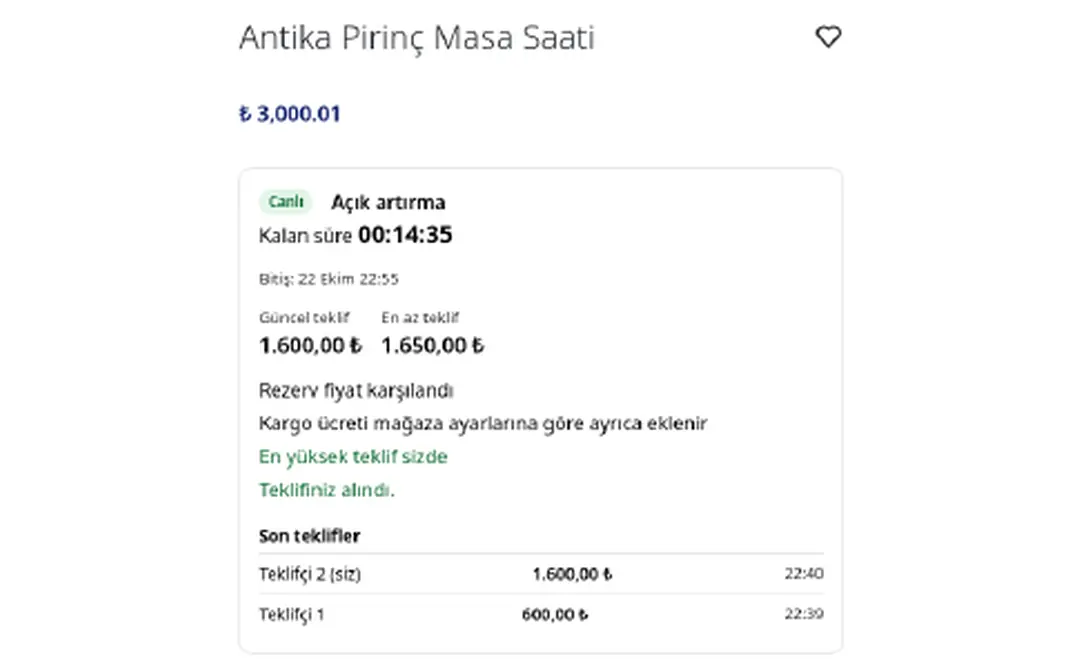
Auctions puts one product of your store (one variant, one unit) up for auction between the start and end times you set. Customers sign in with their store account and bid on the product page; they see a countdown, the current bid and a pseudonymous bid list. When time runs out, the highest bidder gets a personal discount code and buys the product through your normal checkout at the bid amount. The app sends no e-mail or SMS.
- Start price and minimum increment: The first bid must be at least the start price, each next bid at least the current bid plus the increment. Enforced on the server too; a low bid is refused with a clear message showing the minimum amount.
- Hidden reserve price (optional): The reserve amount is never shown on the storefront; the product page only says whether the reserve has been met. If the reserve is not reached at the end, the item is unsold, no code is issued and stock is restored.
- Last-minute extension: A bid in the final minutes extends the end time; the countdown on the product page updates without a reload. Window and extension length are set in the settings (default 2 min / 2 min); an auction extends at most 30 times.
- Pseudonymous bid list: Bids are listed as "Bidder 1", "Bidder 2" and so on. No name, e-mail or phone is shown on the storefront.
- Sign-in required to bid: Bidding needs a store customer account; guests see a sign-in link. Every bid asks for confirmation ("Bids cannot be withdrawn").
- In-store notices: Customers who are outbid, win or lose see a notice while browsing your store.
- Personal code for the winner: The code works only in the winner's customer account and only once. The winner sees it on the product page and buys the product through your normal checkout at the bid amount; shipping is added at checkout according to your store's shipping settings. The code is also shown in the app admin.
- Payment window: The winner gets time to pay (default 48 hours; adjustable from 30 minutes to 2 weeks in the settings). If it runs out, the code is cancelled and no longer accepted at checkout.
- Normal sale is off during the auction: When you create an auction, the product's stock in ikas is set to 0 and the product is hidden from search and category pages; its direct link still opens. At the end, 1 unit is made available for the winner; it can take a few minutes to show on the storefront.
- Warning on orders without the code: During the payment window the product stays hidden from the catalog, but a buyer arriving through the direct link cannot be fully blocked. Orders that contain the auction product but were placed without the winner's code are flagged in the admin.
- Stock and visibility are restored: When an auction ends, is cancelled or goes unsold, the stock and the product's storefront visibility return to their previous state; if it sold, one unit is deducted.
- Problems show up in the admin: If the winner code cannot be created, the admin shows a "Needs attention" warning with "Retry the coupon" and "Release stock lock". You can cancel an auction at any time with "Cancel auction".
- Editing: An auction can be edited until the first bid. After that, editing closes and it can only be cancelled.
- Results report and CSV: Ended auctions with status, final price, bid and bidder counts, reserve status, winner pseudonym and payment status. The CSV opens in Excel without breaking Turkish characters (UTF-8 with BOM, ; separated, Turkish headers, Türkiye time).
- Ready on install: The storefront component is added automatically on install and reinstall; no theme code changes needed.
- Turkish admin and storefront. Dates and times are entered and shown in Türkiye time (Europe/Istanbul). The bid box also works on phones.
Setup
- Install the app on your ikas store and approve the permissions. The storefront component is added automatically.
- In the app settings, check the last-minute extension window, the extension length and the payment window.
- Make sure "continue selling when out of stock" is off in ikas for the product you will auction. Keep the product's sale price above the highest bid you expect: if the winning bid reaches the sale price, no discount code can be created and the admin warns you.
- Click "Create auction" and pick the product; enter the start price, minimum increment, start and end time. Optionally add a hidden reserve price.
- Save. At the start time the bid box appears on the product page.
- After the end, follow the result in the admin and in the results report.
Auctions puts one product of your store (one variant, one unit) up for auction between the start and end times you set. Customers sign in with their store account and bid on the product page; they see a countdown, the current bid and a pseudonymous bid list. When time runs out, the highest bidder gets a personal discount code and buys the product through your normal checkout at the bid amount. The app sends no e-mail or SMS.
- Start price and minimum increment: The first bid must be at least the start price, each next bid at least the current bid plus the increment. Enforced on the server too; a low bid is refused with a clear message showing the minimum amount.
- Hidden reserve price (optional): The reserve amount is never shown on the storefront; the product page only says whether the reserve has been met. If the reserve is not reached at the end, the item is unsold, no code is issued and stock is restored.
- Last-minute extension: A bid in the final minutes extends the end time; the countdown on the product page updates without a reload. Window and extension length are set in the settings (default 2 min / 2 min); an auction extends at most 30 times.
- Pseudonymous bid list: Bids are listed as "Bidder 1", "Bidder 2" and so on. No name, e-mail or phone is shown on the storefront.
- Sign-in required to bid: Bidding needs a store customer account; guests see a sign-in link. Every bid asks for confirmation ("Bids cannot be withdrawn").
- In-store notices: Customers who are outbid, win or lose see a notice while browsing your store.
- Personal code for the winner: The code works only in the winner's customer account and only once. The winner sees it on the product page and buys the product through your normal checkout at the bid amount; shipping is added at checkout according to your store's shipping settings. The code is also shown in the app admin.
- Payment window: The winner gets time to pay (default 48 hours; adjustable from 30 minutes to 2 weeks in the settings). If it runs out, the code is cancelled and no longer accepted at checkout.
- Normal sale is off during the auction: When you create an auction, the product's stock in ikas is set to 0 and the product is hidden from search and category pages; its direct link still opens. At the end, 1 unit is made available for the winner; it can take a few minutes to show on the storefront.
- Warning on orders without the code: During the payment window the product stays hidden from the catalog, but a buyer arriving through the direct link cannot be fully blocked. Orders that contain the auction product but were placed without the winner's code are flagged in the admin.
- Ceiling price (optional): While the auction runs, the product's store price is set to the ceiling price you choose and the product page shows that price; the winner pays with a code discounted down to their bid. When the auction ends or is cancelled, the original price is restored. If you leave it empty, the buy-now price is used, or a high default if there is none. Only the default TRY price list is changed.
- Stock and visibility are restored: When an auction ends, is cancelled or goes unsold, the stock and the product's storefront visibility return to their previous state; if it sold, one unit is deducted.
- Problems show up in the admin: If the winner code cannot be created, the admin shows a "Needs attention" warning with "Retry the coupon" and "Release stock lock". You can cancel an auction at any time with "Cancel auction".
- Editing: An auction can be edited until the first bid. After that, editing closes and it can only be cancelled.
- Results report and CSV: Ended auctions with status, final price, bid and bidder counts, reserve status, winner pseudonym and payment status. The CSV opens in Excel without breaking Turkish characters (UTF-8 with BOM, ; separated, Turkish headers, Türkiye time).
- Ready on install: The storefront component is added automatically on install and reinstall; no theme code changes needed.
- Turkish admin and storefront. Dates and times are entered and shown in Türkiye time (Europe/Istanbul). The bid box also works on phones.
Setup
- Install the app on your ikas store and approve the permissions. The storefront component is added automatically.
- In the app settings, check the last-minute extension window, the extension length and the payment window.
- Make sure "continue selling when out of stock" is off in ikas for the product you will auction. Set the ceiling price above the highest bid you expect. The ceiling can be higher than the product's normal sale price.
- Click "Create auction" and pick the product; enter the start price, minimum increment, start and end time. Optionally add a hidden reserve price.
- Save. At the start time the bid box appears on the product page.
- After the end, follow the result in the admin and in the results report.
Plan and trial
- Plan: Pro.
- 7-day free trial from first install (reinstalling does not restart it).
- Price (Pro): Türkiye ₺4.990/year (no monthly option); Europe €9/month or €90/year; Americas, Asia, Africa, Oceania $10/month or $100/year.
- If the trial ends without payment, the admin locks; open auctions are closed and the products' stock and visibility are restored.
Plan and trial
- Plan: Pro.
- 7-day free trial from first install (reinstalling does not restart it).
- Price (Pro): Türkiye ₺4.999/year (no monthly option); Europe €10/month or €90/year; Americas, Asia, Africa, Oceania $11/month or $100/year.
- If the trial ends without payment, the admin locks; open auctions are closed and the products' stock and visibility are restored.

Auctions


App Information
Stores with installations
0-50 stores
Release Date
21 October, 2026

Supported Languages
About Auctions
Auctions puts one product of your store (one variant, one unit) up for auction between the start and end times you set. Customers sign in with their store account and bid on the product page; they see a countdown, the current bid and a pseudonymous bid list. When time runs out, the highest bidder gets a personal discount code and buys the product through your normal checkout at the bid amount. The app sends no e-mail or SMS.
- Start price and minimum increment: The first bid must be at least the start price, each next bid at least the current bid plus the increment. Enforced on the server too; a low bid is refused with a clear message showing the minimum amount.
- Hidden reserve price (optional): The reserve amount is never shown on the storefront; the product page only says whether the reserve has been met. If the reserve is not reached at the end, the item is unsold, no code is issued and stock is restored.
- Last-minute extension: A bid in the final minutes extends the end time; the countdown on the product page updates without a reload. Window and extension length are set in the settings (default 2 min / 2 min); an auction extends at most 30 times.
- Pseudonymous bid list: Bids are listed as "Bidder 1", "Bidder 2" and so on. No name, e-mail or phone is shown on the storefront.
- Sign-in required to bid: Bidding needs a store customer account; guests see a sign-in link. Every bid asks for confirmation ("Bids cannot be withdrawn").
- In-store notices: Customers who are outbid, win or lose see a notice while browsing your store.
- Personal code for the winner: The code works only in the winner's customer account and only once. The winner sees it on the product page and buys the product through your normal checkout at the bid amount; shipping is added at checkout according to your store's shipping settings. The code is also shown in the app admin.
- Payment window: The winner gets time to pay (default 48 hours; adjustable from 30 minutes to 2 weeks in the settings). If it runs out, the code is cancelled and no longer accepted at checkout.
- Normal sale is off during the auction: When you create an auction, the product's stock in ikas is set to 0 and the product is hidden from search and category pages; its direct link still opens. At the end, 1 unit is made available for the winner; it can take a few minutes to show on the storefront.
- Warning on orders without the code: During the payment window the product stays hidden from the catalog, but a buyer arriving through the direct link cannot be fully blocked. Orders that contain the auction product but were placed without the winner's code are flagged in the admin.
- Stock and visibility are restored: When an auction ends, is cancelled or goes unsold, the stock and the product's storefront visibility return to their previous state; if it sold, one unit is deducted.
- Problems show up in the admin: If the winner code cannot be created, the admin shows a "Needs attention" warning with "Retry the coupon" and "Release stock lock". You can cancel an auction at any time with "Cancel auction".
- Editing: An auction can be edited until the first bid. After that, editing closes and it can only be cancelled.
- Results report and CSV: Ended auctions with status, final price, bid and bidder counts, reserve status, winner pseudonym and payment status. The CSV opens in Excel without breaking Turkish characters (UTF-8 with BOM, ; separated, Turkish headers, Türkiye time).
- Ready on install: The storefront component is added automatically on install and reinstall; no theme code changes needed.
- Turkish admin and storefront. Dates and times are entered and shown in Türkiye time (Europe/Istanbul). The bid box also works on phones.
Setup
- Install the app on your ikas store and approve the permissions. The storefront component is added automatically.
- In the app settings, check the last-minute extension window, the extension length and the payment window.
- Make sure "continue selling when out of stock" is off in ikas for the product you will auction. Keep the product's sale price above the highest bid you expect: if the winning bid reaches the sale price, no discount code can be created and the admin warns you.
- Click "Create auction" and pick the product; enter the start price, minimum increment, start and end time. Optionally add a hidden reserve price.
- Save. At the start time the bid box appears on the product page.
- After the end, follow the result in the admin and in the results report.
Auctions puts one product of your store (one variant, one unit) up for auction between the start and end times you set. Customers sign in with their store account and bid on the product page; they see a countdown, the current bid and a pseudonymous bid list. When time runs out, the highest bidder gets a personal discount code and buys the product through your normal checkout at the bid amount. The app sends no e-mail or SMS.
- Start price and minimum increment: The first bid must be at least the start price, each next bid at least the current bid plus the increment. Enforced on the server too; a low bid is refused with a clear message showing the minimum amount.
- Hidden reserve price (optional): The reserve amount is never shown on the storefront; the product page only says whether the reserve has been met. If the reserve is not reached at the end, the item is unsold, no code is issued and stock is restored.
- Last-minute extension: A bid in the final minutes extends the end time; the countdown on the product page updates without a reload. Window and extension length are set in the settings (default 2 min / 2 min); an auction extends at most 30 times.
- Pseudonymous bid list: Bids are listed as "Bidder 1", "Bidder 2" and so on. No name, e-mail or phone is shown on the storefront.
- Sign-in required to bid: Bidding needs a store customer account; guests see a sign-in link. Every bid asks for confirmation ("Bids cannot be withdrawn").
- In-store notices: Customers who are outbid, win or lose see a notice while browsing your store.
- Personal code for the winner: The code works only in the winner's customer account and only once. The winner sees it on the product page and buys the product through your normal checkout at the bid amount; shipping is added at checkout according to your store's shipping settings. The code is also shown in the app admin.
- Payment window: The winner gets time to pay (default 48 hours; adjustable from 30 minutes to 2 weeks in the settings). If it runs out, the code is cancelled and no longer accepted at checkout.
- Normal sale is off during the auction: When you create an auction, the product's stock in ikas is set to 0 and the product is hidden from search and category pages; its direct link still opens. At the end, 1 unit is made available for the winner; it can take a few minutes to show on the storefront.
- Warning on orders without the code: During the payment window the product stays hidden from the catalog, but a buyer arriving through the direct link cannot be fully blocked. Orders that contain the auction product but were placed without the winner's code are flagged in the admin.
- Ceiling price (optional): While the auction runs, the product's store price is set to the ceiling price you choose and the product page shows that price; the winner pays with a code discounted down to their bid. When the auction ends or is cancelled, the original price is restored. If you leave it empty, the buy-now price is used, or a high default if there is none. Only the default TRY price list is changed.
- Stock and visibility are restored: When an auction ends, is cancelled or goes unsold, the stock and the product's storefront visibility return to their previous state; if it sold, one unit is deducted.
- Problems show up in the admin: If the winner code cannot be created, the admin shows a "Needs attention" warning with "Retry the coupon" and "Release stock lock". You can cancel an auction at any time with "Cancel auction".
- Editing: An auction can be edited until the first bid. After that, editing closes and it can only be cancelled.
- Results report and CSV: Ended auctions with status, final price, bid and bidder counts, reserve status, winner pseudonym and payment status. The CSV opens in Excel without breaking Turkish characters (UTF-8 with BOM, ; separated, Turkish headers, Türkiye time).
- Ready on install: The storefront component is added automatically on install and reinstall; no theme code changes needed.
- Turkish admin and storefront. Dates and times are entered and shown in Türkiye time (Europe/Istanbul). The bid box also works on phones.
Setup
- Install the app on your ikas store and approve the permissions. The storefront component is added automatically.
- In the app settings, check the last-minute extension window, the extension length and the payment window.
- Make sure "continue selling when out of stock" is off in ikas for the product you will auction. Set the ceiling price above the highest bid you expect. The ceiling can be higher than the product's normal sale price.
- Click "Create auction" and pick the product; enter the start price, minimum increment, start and end time. Optionally add a hidden reserve price.
- Save. At the start time the bid box appears on the product page.
- After the end, follow the result in the admin and in the results report.
Plan and trial
- Plan: Pro.
- 7-day free trial from first install (reinstalling does not restart it).
- Price (Pro): Türkiye ₺4.990/year (no monthly option); Europe €9/month or €90/year; Americas, Asia, Africa, Oceania $10/month or $100/year.
- If the trial ends without payment, the admin locks; open auctions are closed and the products' stock and visibility are restored.
Plan and trial
- Plan: Pro.
- 7-day free trial from first install (reinstalling does not restart it).
- Price (Pro): Türkiye ₺4.999/year (no monthly option); Europe €10/month or €90/year; Americas, Asia, Africa, Oceania $11/month or $100/year.
- If the trial ends without payment, the admin locks; open auctions are closed and the products' stock and visibility are restored.
Auctions
App Information
Stores with installations
0-50 stores
Release Date
21 October, 2026
Supported Languages